Dashboard Views and Menu Items
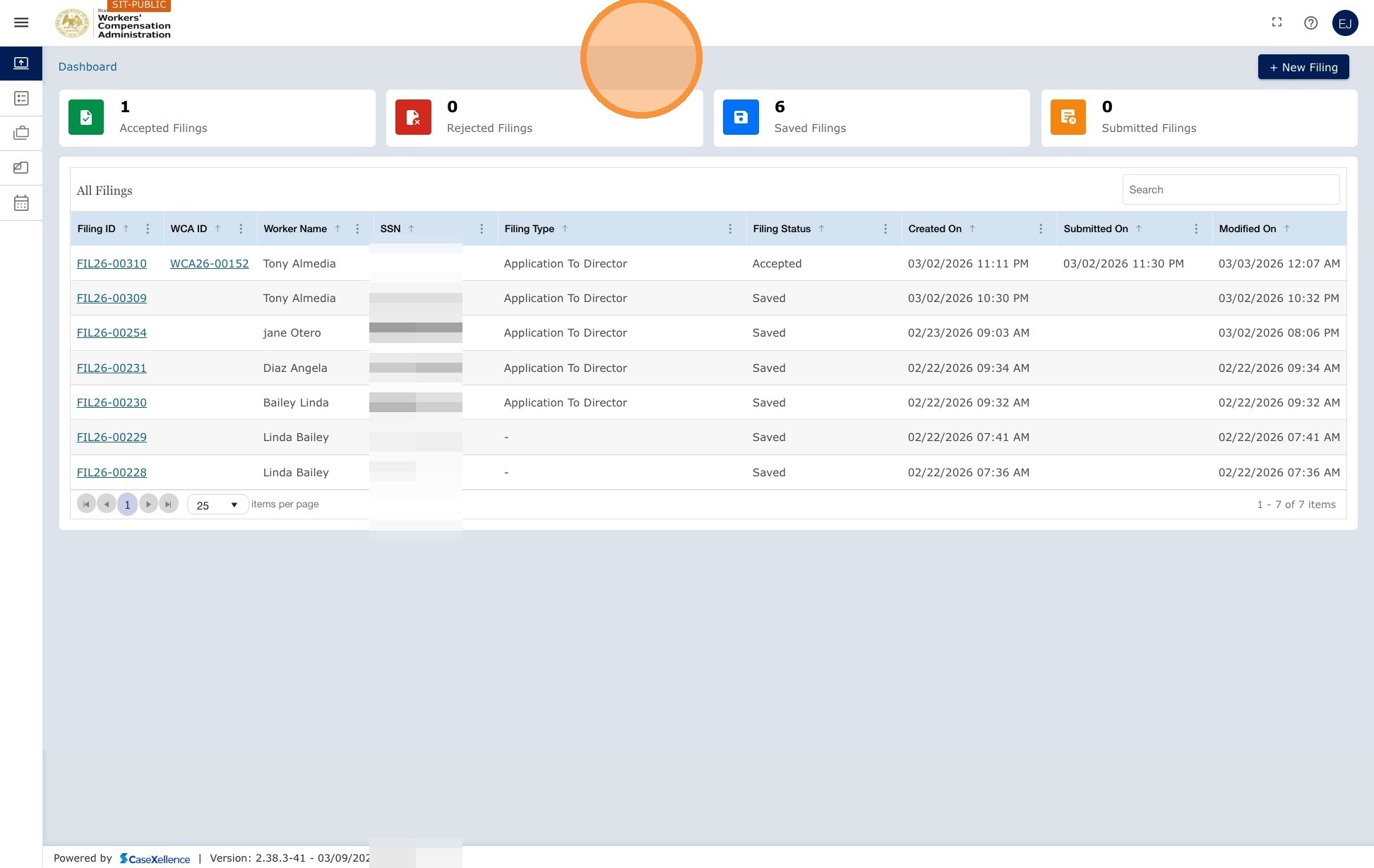
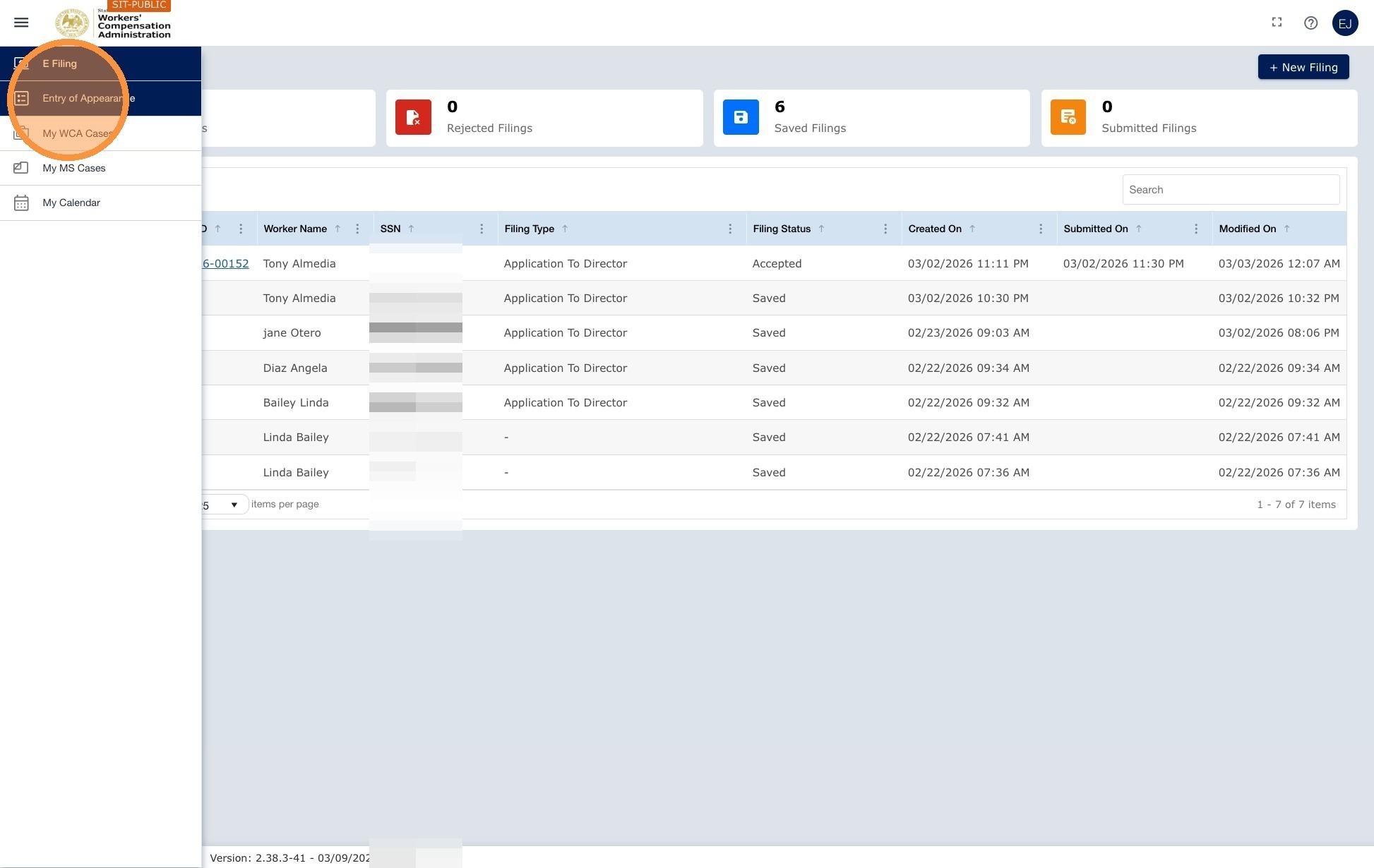
The Dashboard is your home screen in the ECF portal. Each time you log in, you land here. It provides an at-a-glance view of your filings and cases, organized by status. Use the tiles to filter the grid, and use the left navigation menu to create filings, join cases, view cases, or open your calendar.
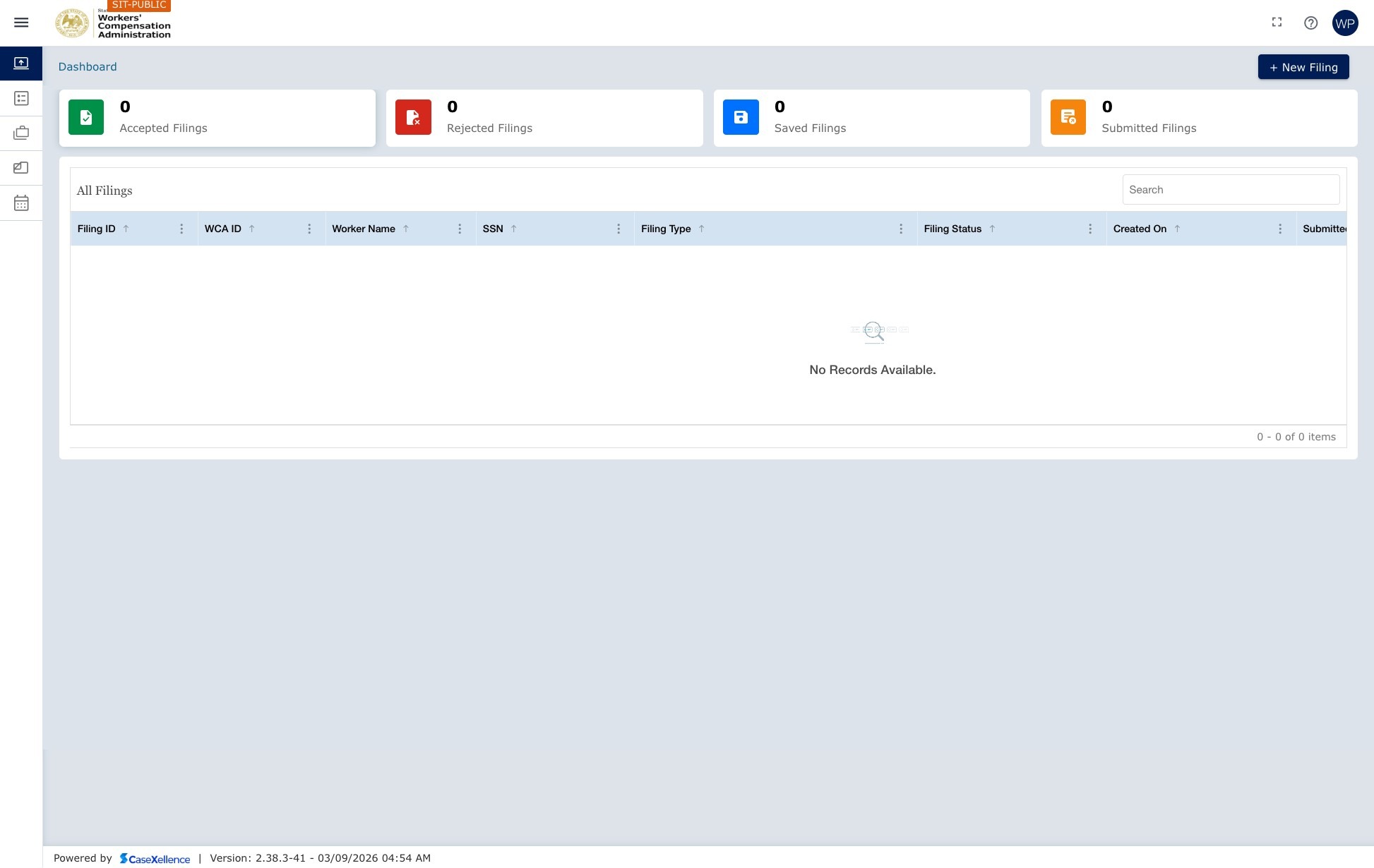
Dashboard tiles
The colored tiles across the top each represent a filing status. Click a tile to filter the grid below and show only filings with that status.
Accepted Filings
Filings that have been reviewed and accepted by the Clerk's Office. Accepted filings are converted to cases and assigned a WCA Case Number. To add pleadings by opening an accepted filing from this tile (dashboard path), see the Alternative path: Add a pleading from Accepted Filings section in WCA Case - Add pleadings to existing case.
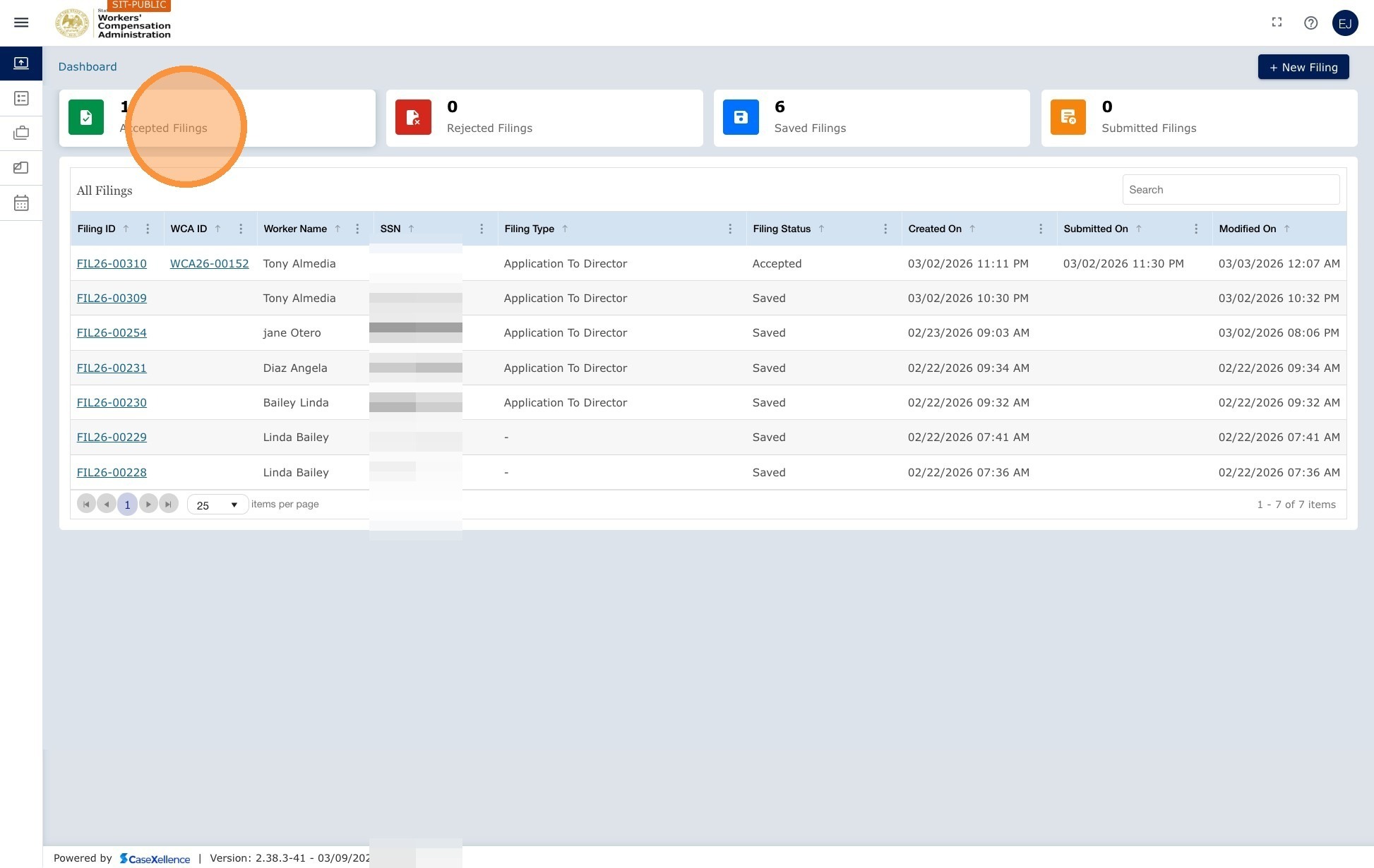
Rejected Filings
Filings that were rejected by the Clerk's Office before case conversion. Correct the issue and resubmit the filing. For more information, see Create Filing and Submission. For rejected pleadings on an already accepted case, see WCA Case — Resubmission of Rejected Pleadings.
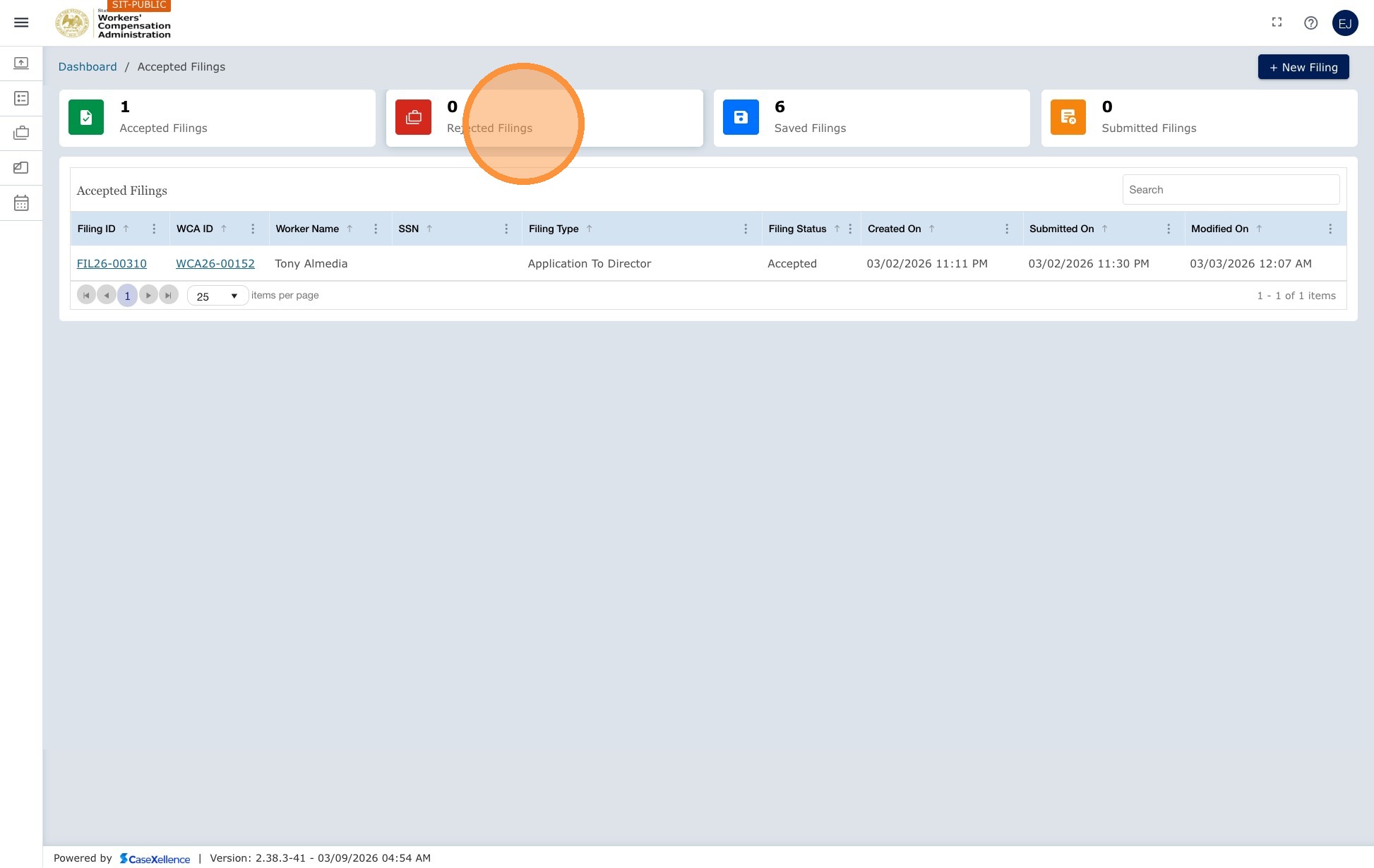
Saved Filings
Drafts you started and saved but have not yet submitted. These filings are visible only to you. You can return to a saved filing at any time to continue working and submit it.
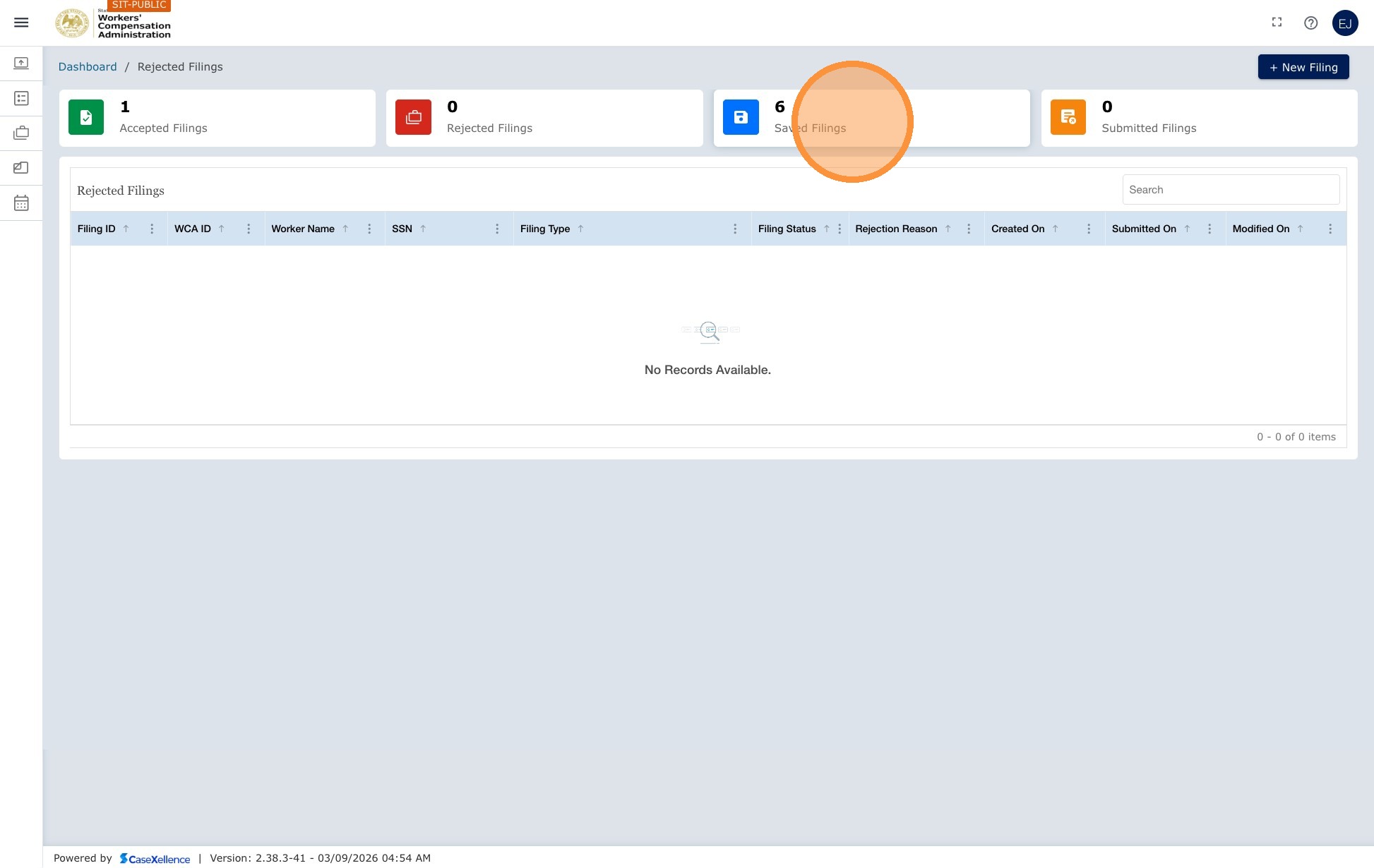
Submitted Filings
Filings you have submitted to the WCA Clerk's Office that are awaiting review. They have been sent but not yet accepted or rejected.
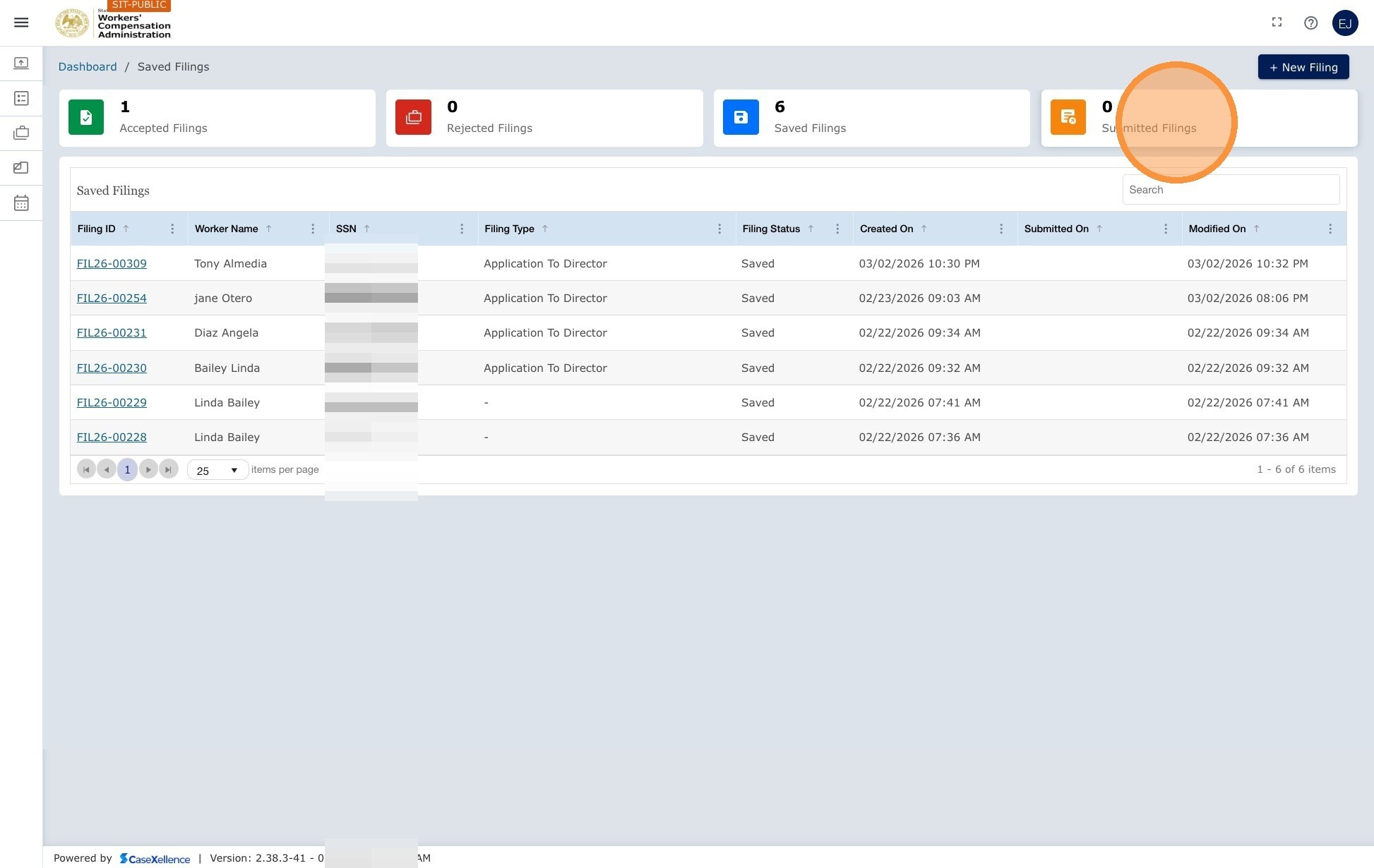
The filing grid
Below the tiles, the grid lists your filings. It updates to show only the filings for the tile you selected. When no tile is selected, all filings are shown.
| Column | Description |
|---|---|
| Filing ID | A unique system-generated ID in the format FILE-YY-XXXXX. Click the link to open the full filing. |
| Worker Name | The injured worker associated with the filing. |
| Filing Type | The type of document, such as a Workers' Compensation Complaint, Lump Sum Petition, or HCP filing. |
| Filing Status | Saved, Submitted, Accepted, or Rejected. |
| Created | The date and time the filing was first created. |
| Modified | The date and time the filing was last updated. |
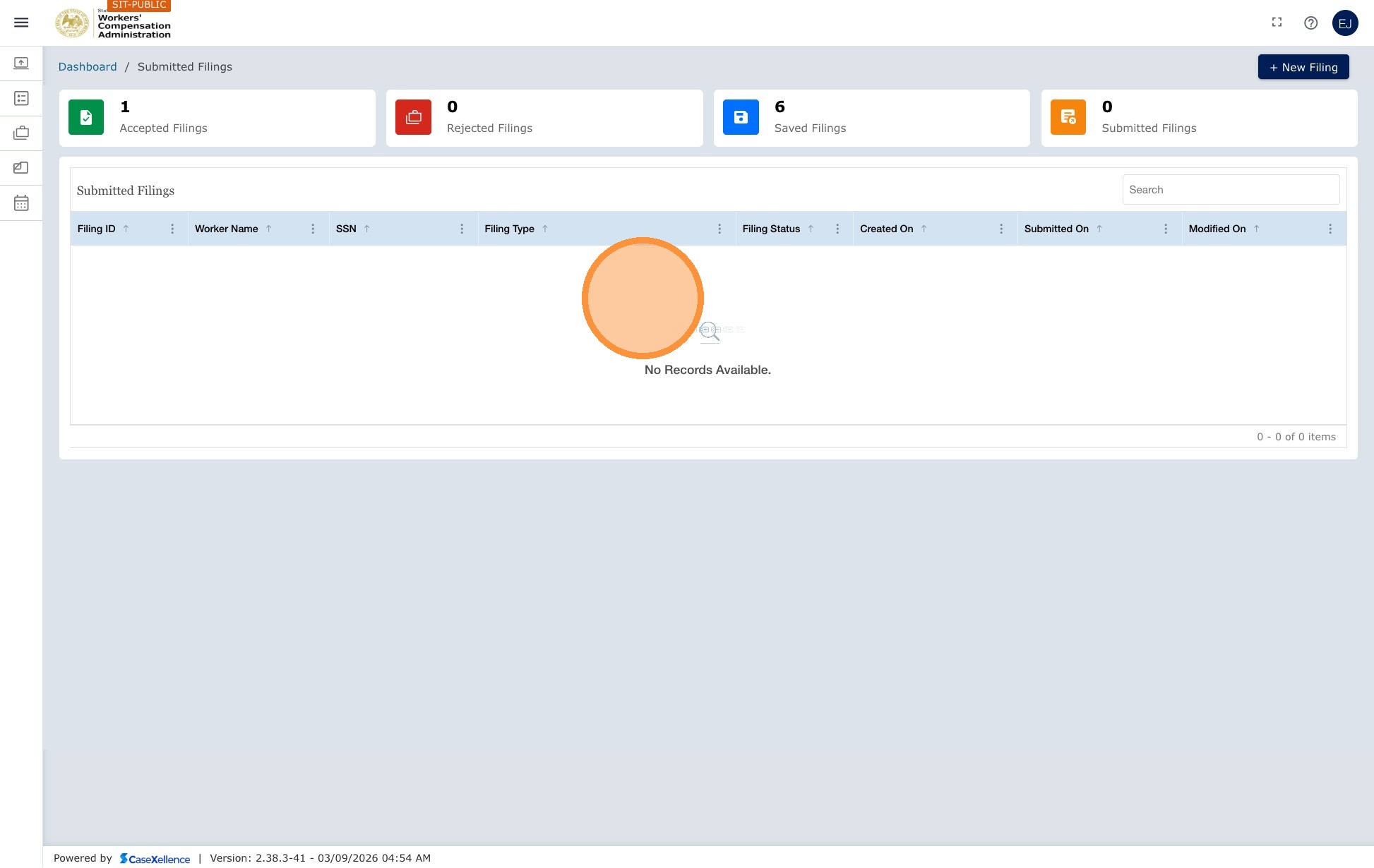
Search the grid
| Option | Description |
|---|---|
| Grid search | Type a keyword in the search bar above the grid to filter by any visible field, such as worker name, filing type, or status. Search is case-insensitive. |
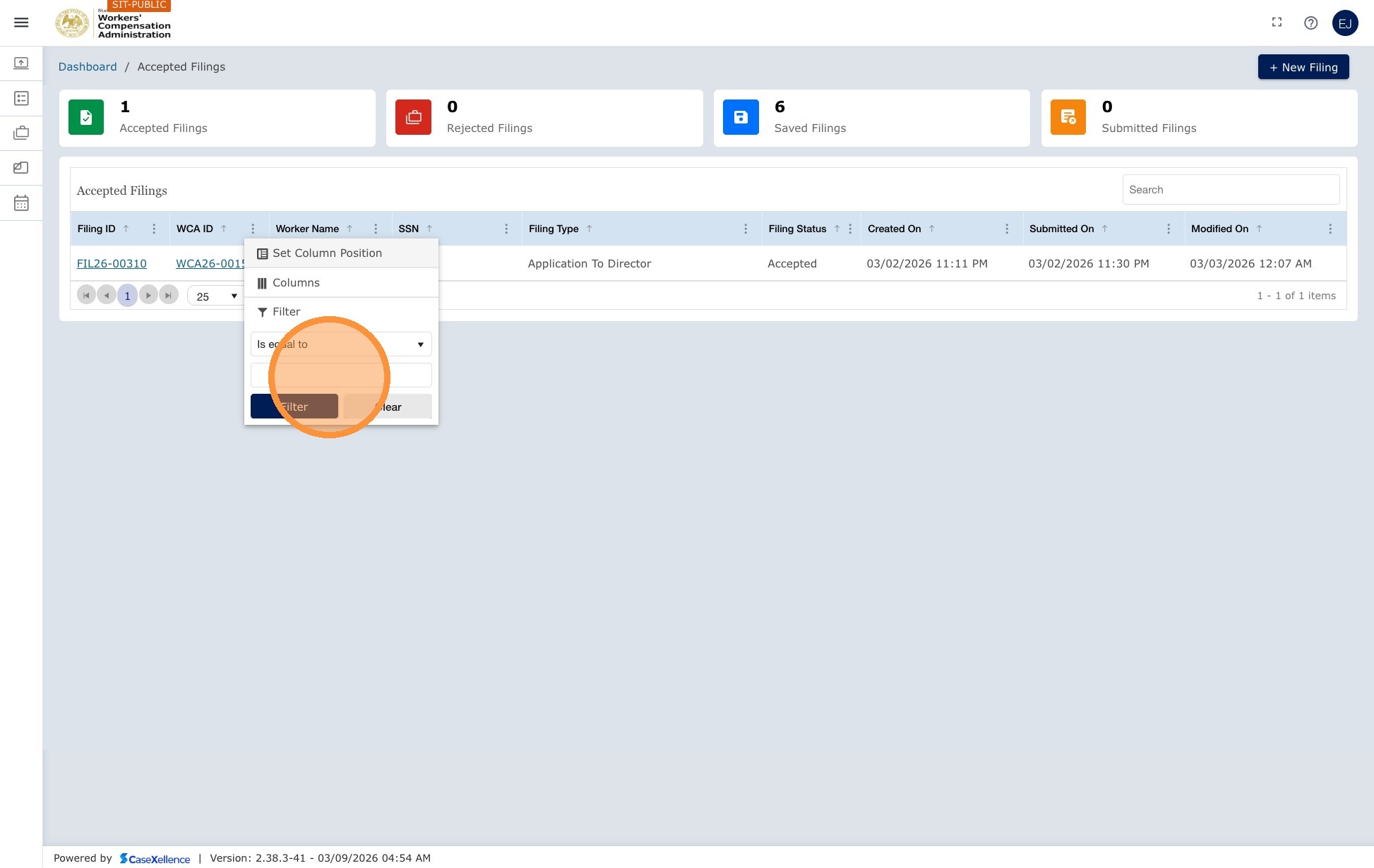
| Column search | Click the three-dot icon in a column header to filter by that column. Available options include contains, starts with, and other operators. |
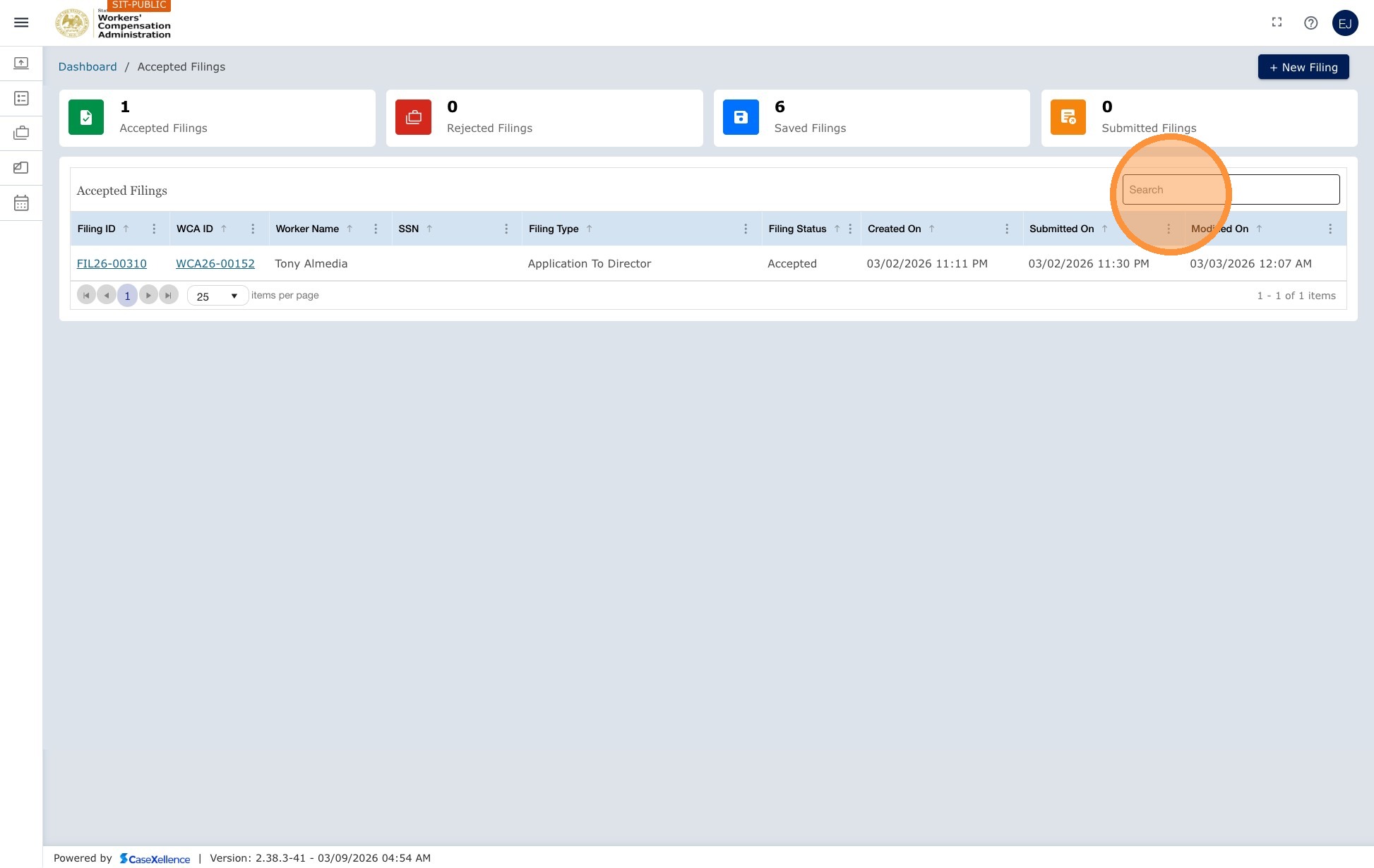
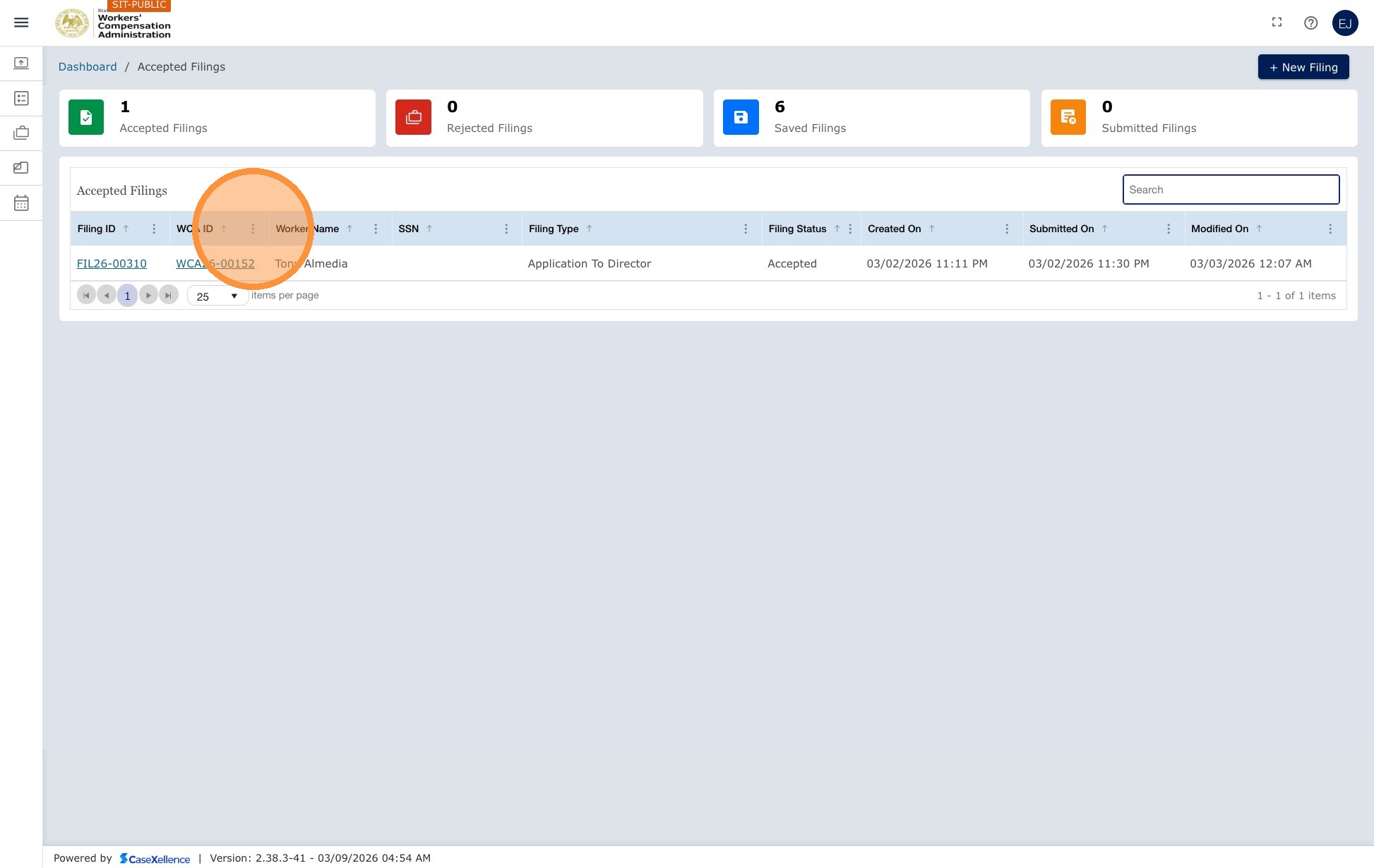
Left navigation menu
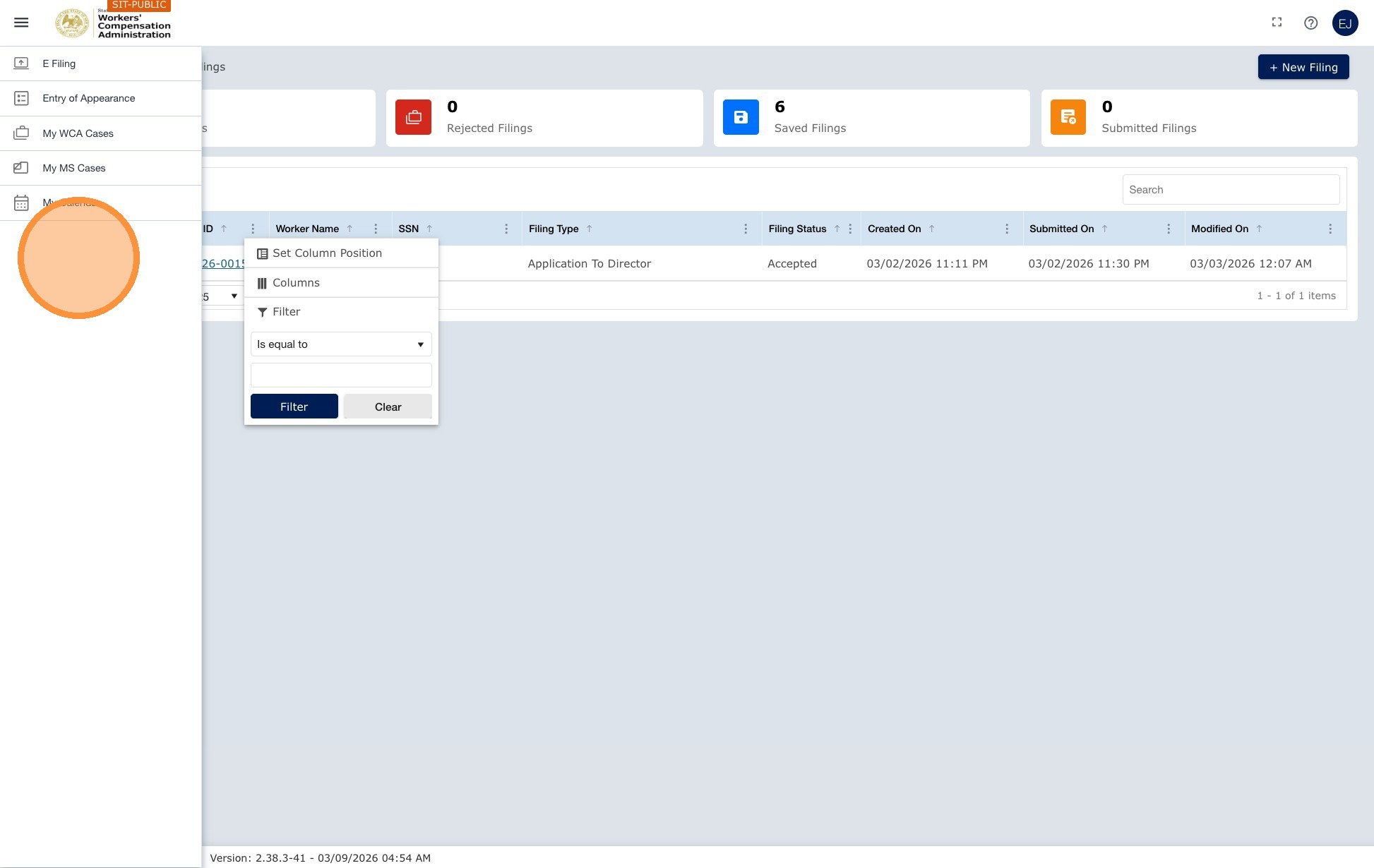
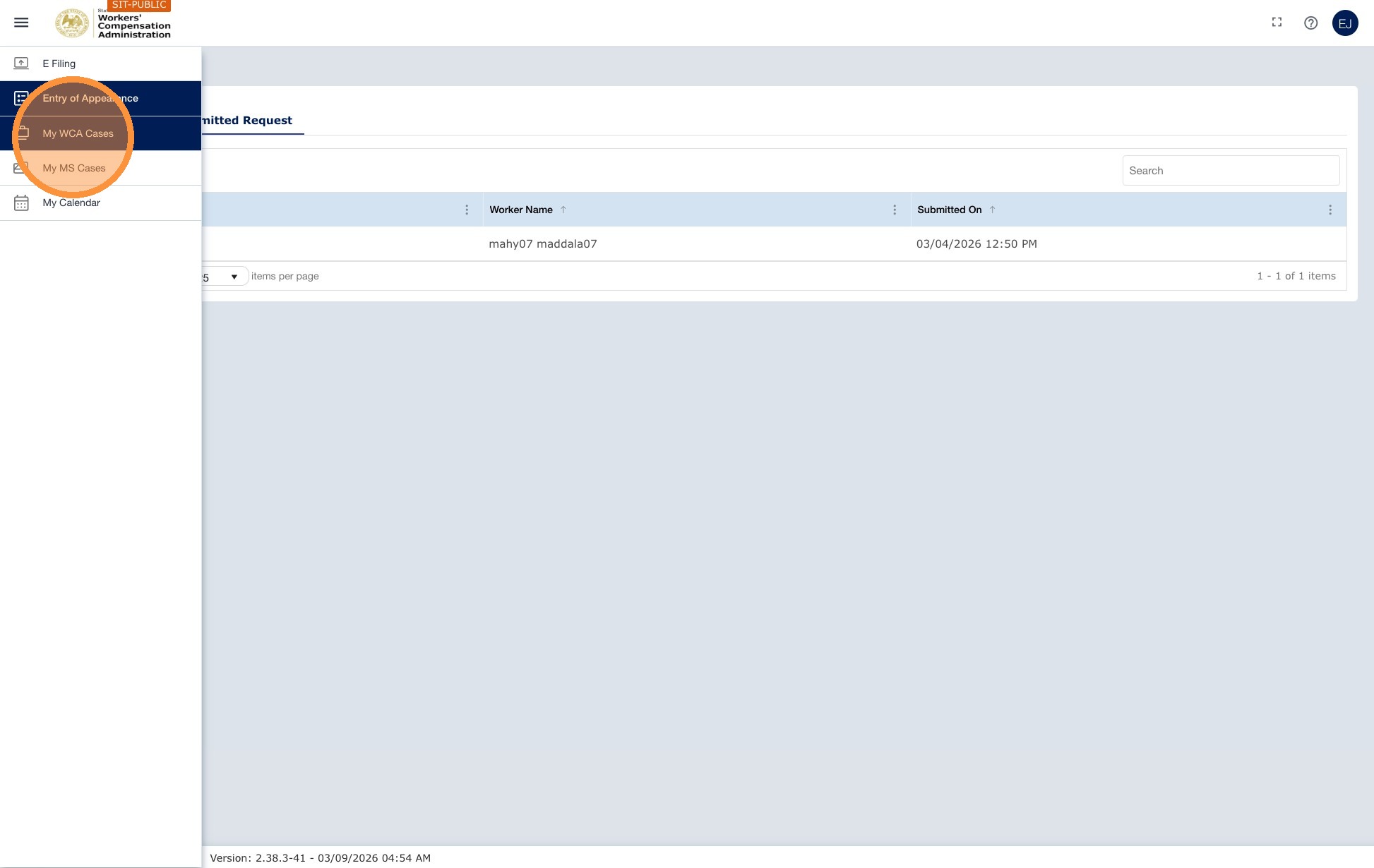
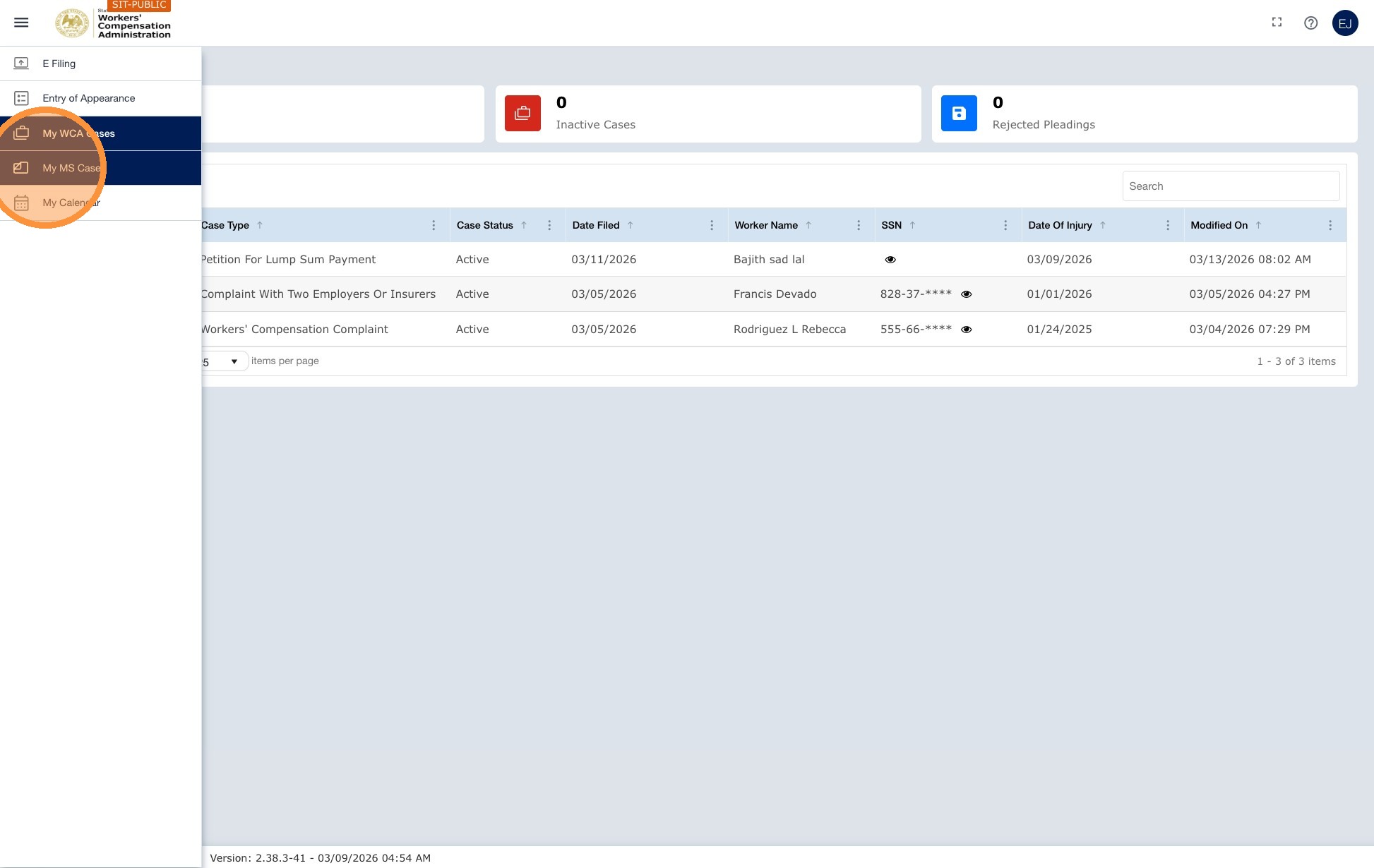
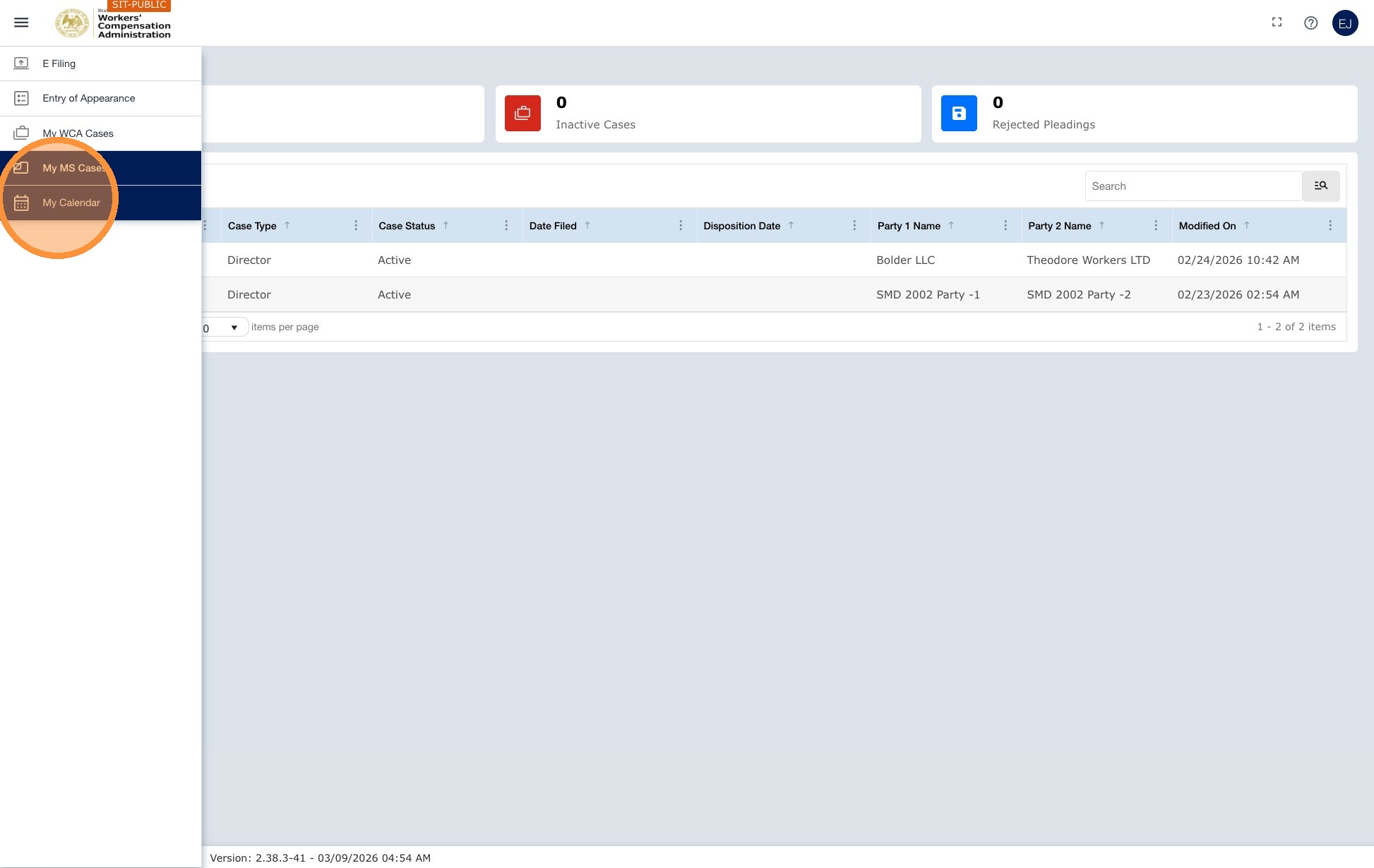
The left navigation menu is always visible and gives you access to the portal's main functions:
| Menu item | What it does |
|---|---|
| E-Filing | Create a new filing, such as a complaint, petition, or other case-creation document. For more information, see Create Filing and Submission. |
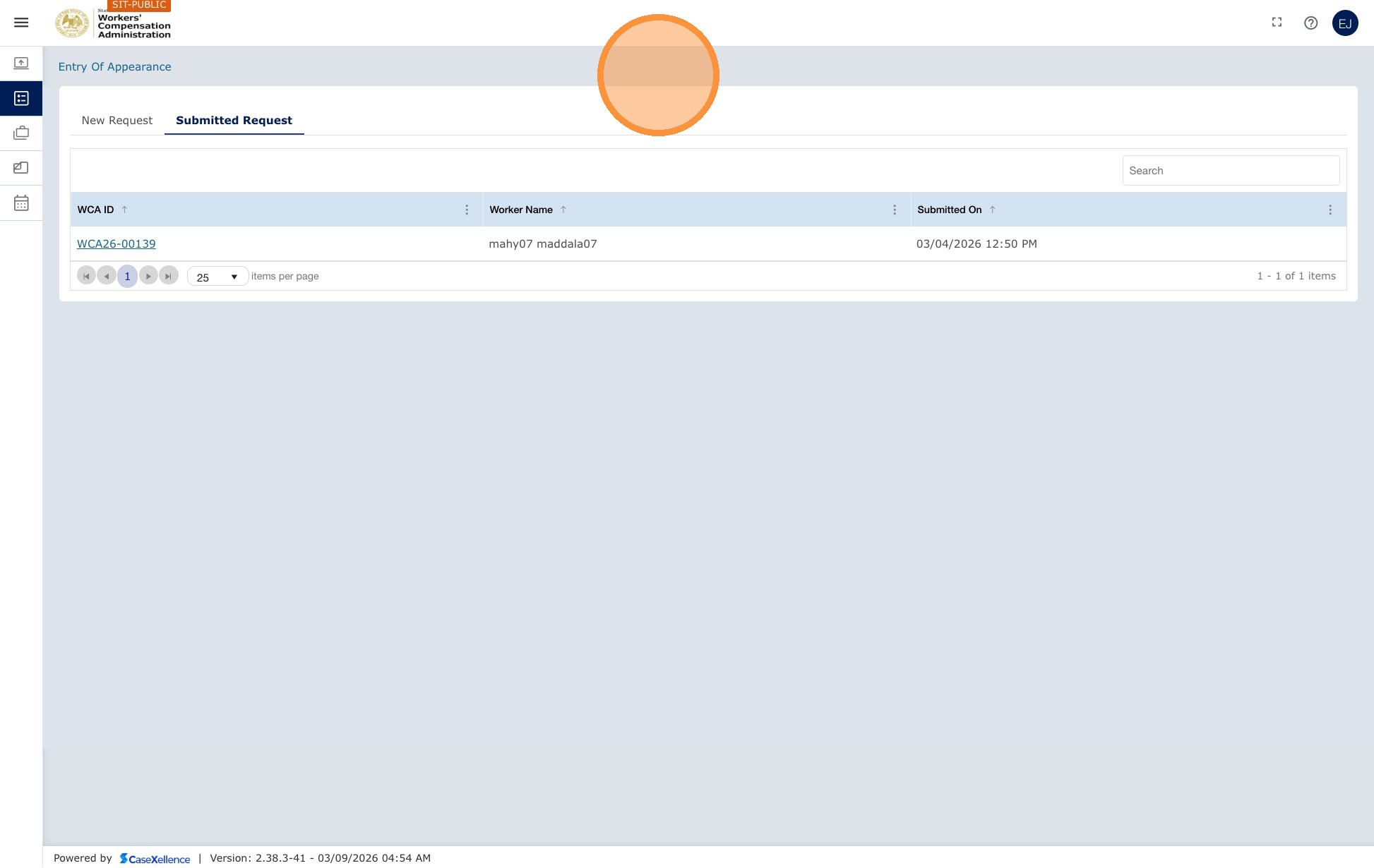
| Entry of Appearance | Add yourself as an attorney to an existing WCA case where you are not yet a party. For more information, see WCA Case — Add Attorney to Existing Case. |
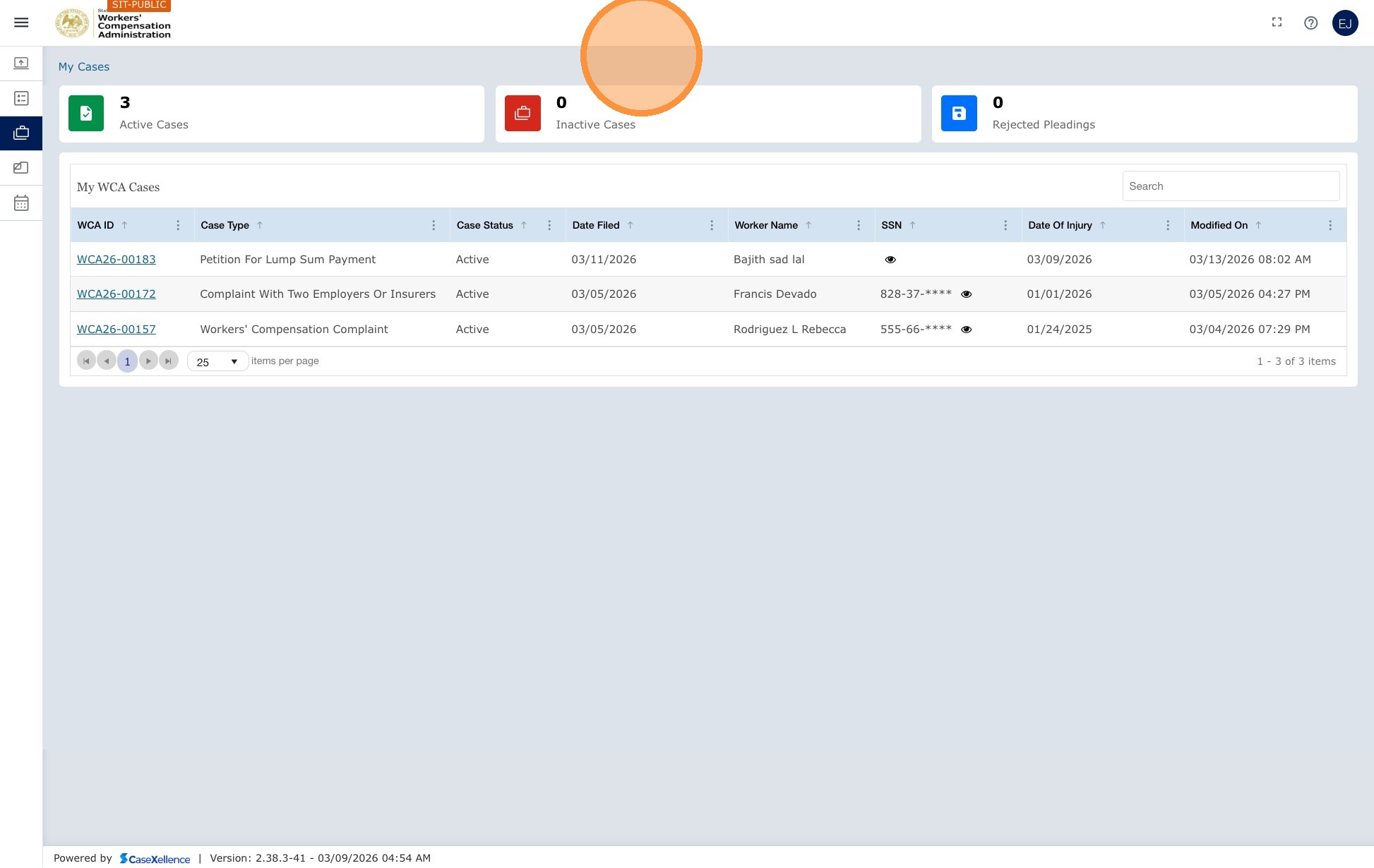
| My WCA Cases | View all active and inactive WCA cases where you are a party. Select a case to view details, pleadings, events, and mediation information. |
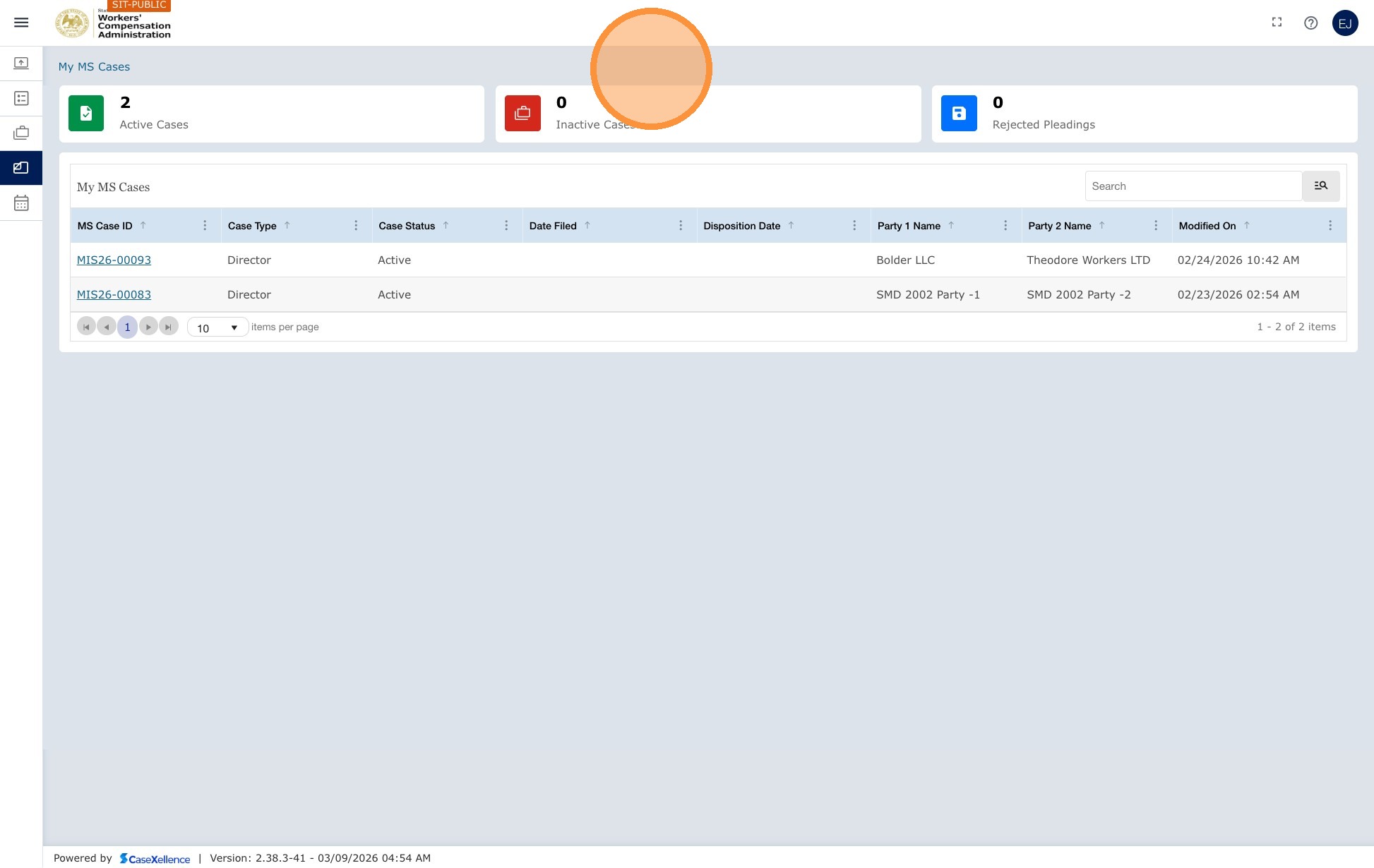
| My MS Cases | View all active and inactive MS cases where you are a party. Select a case to view details, pleadings, events, and mediation information. |
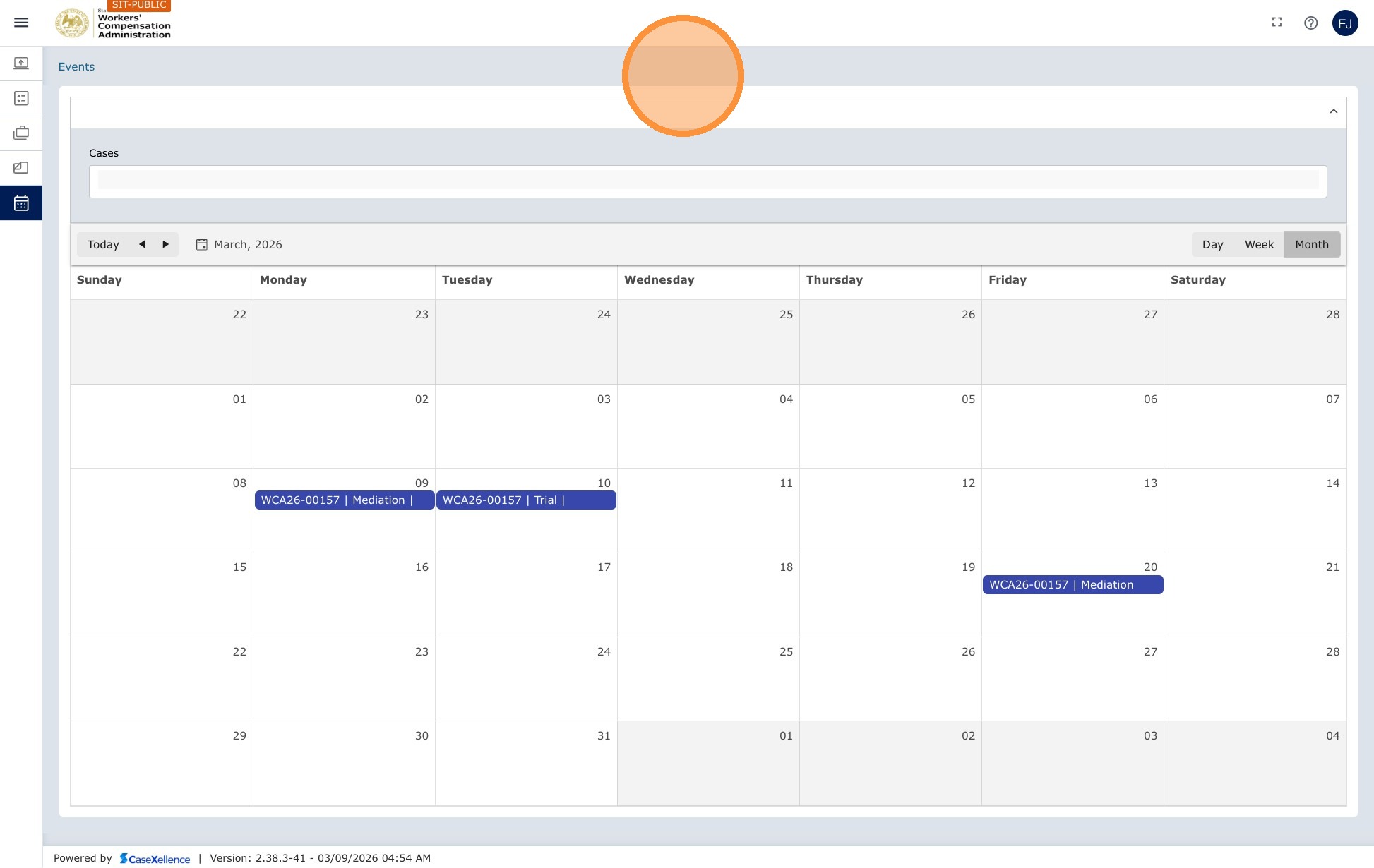
| My Calendar | View a calendar of events, such as mediations, hearings, and trials, across all your cases. For more information, see My Calendar. |
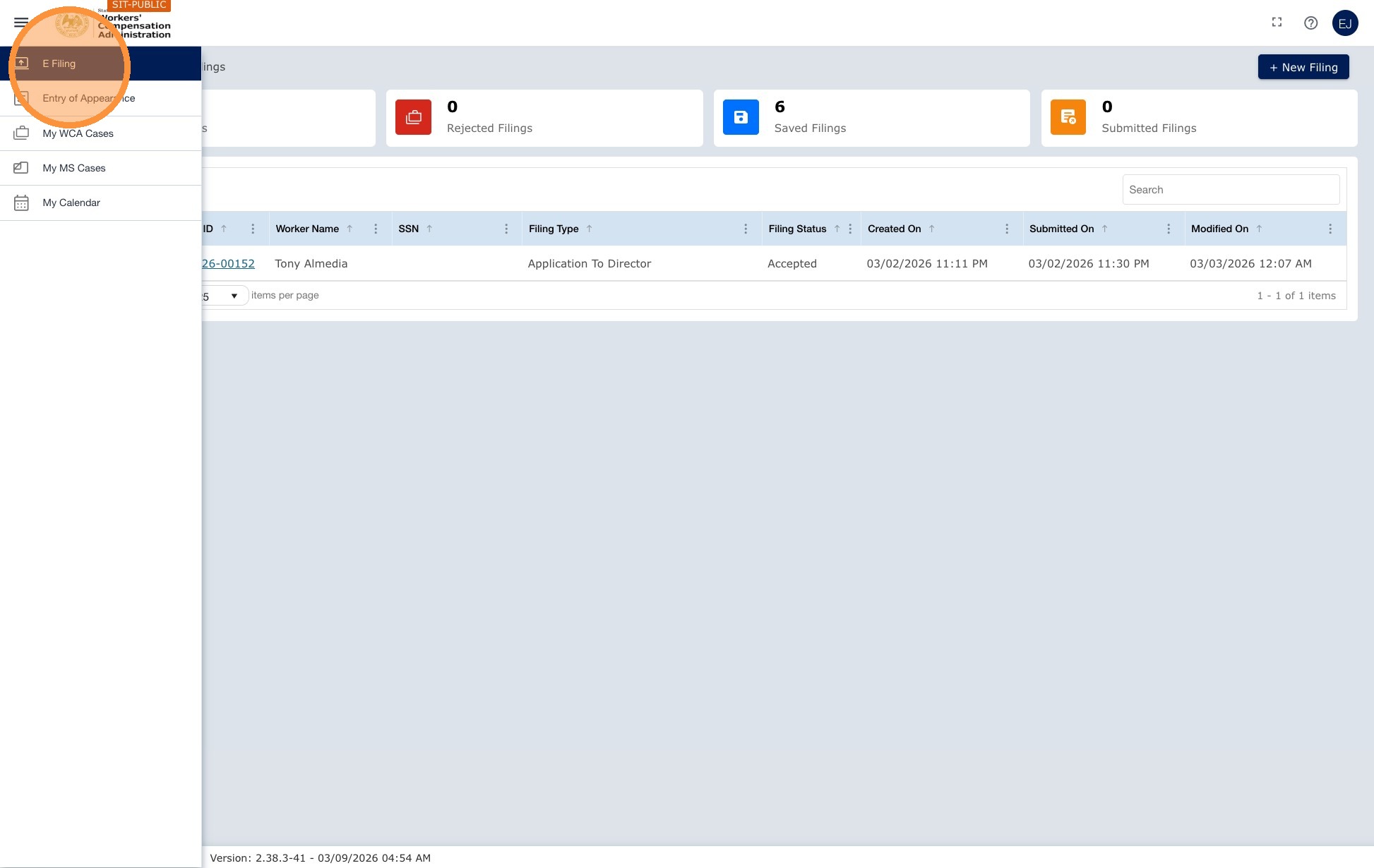
Note: Self-represented users (pro se) do not see E-Filing or Entry of Appearance in the menu. Their view is limited to My Cases, My Calendar, and Contact Us.
Next: Create Filing and Submission · WCA Case — Add Attorney to Existing Case · User Profile Update
Portions of this user guide were produced with assistance from artificial intelligence tools; all content was reviewed for accuracy before publication.